


Opto22 EPIC Controller Battery Voltage Reading Using Node-Red

Updated: 2 days ago
Welcome automation nerds! Today we are going through the process of setting up a custom Node-Red node I developed to read the voltage of the internal EPIC battery. You can use this node to integrate the battery voltage reading into your control strategy to do whatever you want, like activate an alarm when it drops below a certain threshold. This would be useful to let an operator know that retained settings will be lost when the controller loses power due to the battery voltage being low. Download the JSON file below and import into your Node-Red. If your controller does not have access to the internet, do not worry, this node only uses CORE nodes to operate so nothing needs to be downloaded for this to function. The two files below are the same, one is the JSON file and the other is a text file you can just copy the contents and paste into your Node-Red. Now lets get into it.
Opto22 EPIC firmware 4.0+ added the backup battery voltage to groov Manage under 'System Status'. However, if you have an older EPIC controller it wont matter what firmware you have, the hardware required to read the battery voltage is NOT in your controller. Sucks for you, right? (Hey Opto22, buy back my old EPIC PR1 controller so I can get a newer model!). Anyway, lets continue on... Did you import the node yet?
Once you get it imported, you will see just ONE node (see above). You can double click the node and select 'Edit subflow template' to open it up and see what's inside. There is some configuration that needs to be done on your controller first before this will operate correctly. Are you familiar with the EPIC certificates? Well your about to get a crash course. Log into grooov Manage with an admin account, click Security, and go to the web certificates. You will need to create your own certificate now.

Click the '+Create Certificate' button and fill in the required information. Refer to the example above if you need help. Just make sure your CN (Common Name) is set to the IP address of your controller, makes it easier during the node setup. Once your certificate is created, click 'Download Public Certificate'. This will download a 'cert.pem' to your downloads folder. From the groov Manage home screen, go to System > Files > Unsecured Files and upload the cert.pem you just downloaded (do not change the name of that file) to your EPIC controller. Now, from the groov Manage home screen, go to Accounts > Users > 'click on the currently logged in user' (should be an admin). Within that user, you will see an API key, highlight and copy that key.
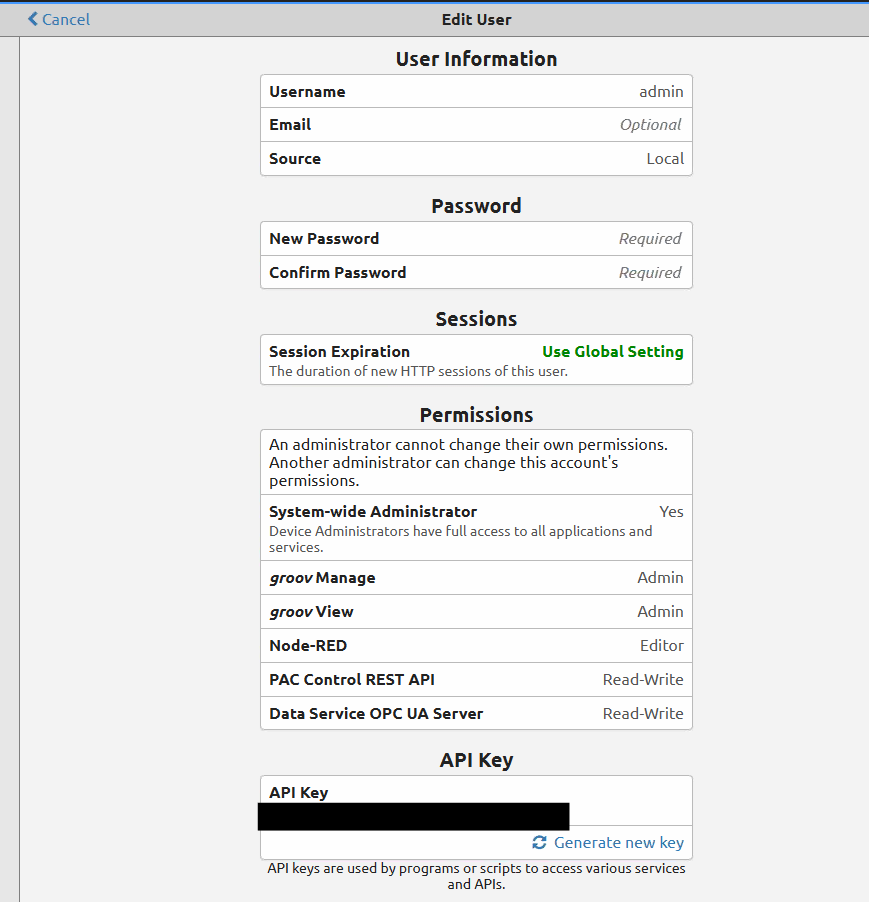
Navigate back to your Node-Red environment, open up that imported node and enter your IP address on the HOST line and paste in your API key on the API_KEY line.

Now lets add the following two variables to your running strategy.
Integer variable: nBattReadReq (initial value of 0)
Float variable: fBatteryVoltage (initial value of 0)
Save and download to the controller. Now you can deploy your Node-Red flow. In debug, open the nBattReadReq variable and set it to 1. This will request a battery read from that node, it will output the voltage to the fBatteryVoltage variable then CLEARS the nBattReadReq variable back to 0. Now you can read the battery voltage whenever you want. Keep in mind that reading the voltage draws a small amount from the battery so don't do it repeatedly. Groov Manage only reads the voltage every 15min, just so you know.


Comments